| Live translation | Your plan | Old sermons |
|---|---|---|
| From $39/hr | Broadcast or Studio | $0.39/min |
| per language, quoted per event | OBS/encoder or browser webcam — translation works on either | per language, to translate your back catalog |
What you need before you start
- A camera/webcam OR a computer running OBS
- A stable internet upload (a steady 5–10 Mbps handles 720p)
- A translation quote from our team (from $39/hr per language — just ask)
- One volunteer to run it
- (Optional) Your church website login if you want to embed
Why stream your service online (and in every language)
This Sunday, a grandmother in your third row could hear the sermon in Spanish for the first time — not a summary afterward in the lobby, but the actual words as the pastor says them. A Mandarin-speaking family two rows back hears it too. A homebound member watches from her kitchen. And the person who makes that happen isn't a broadcast engineer — it's you, the volunteer who got handed the AV laptop and a lot of faith.
- Multilingual members worship in their own language, live — not in their head
- Homebound, remote, and traveling members stay included every week
- Multi-campus churches share one feed without a second production
- Every service is saved automatically as an on-demand sermon
Nobody should have to translate the gospel in their own head while they're trying to worship — this just lets them be present.
If you can join a Zoom call and share your screen, you can do every step below. We'll go slow.
Step 1: Pick your plan and get a translation quote
Go to riverbend.live/pricing and pick the plan that matches how you'll go live: Broadcast ($79/mo) if you stream from OBS or another encoder, or Studio ($129/mo) if you'd rather go live straight from a browser webcam with interactive features. (There's also a free Broadcast plan to get started.) Live AI translation is available on either one: translated services run through Riverbend's Studio — which takes a browser webcam or an OBS feed — and switching translation on for your account unlocks it.
No account yet? You'll create one as part of the flow — email and a password, or one tap with Google, X, or Facebook. No separate signup detour.
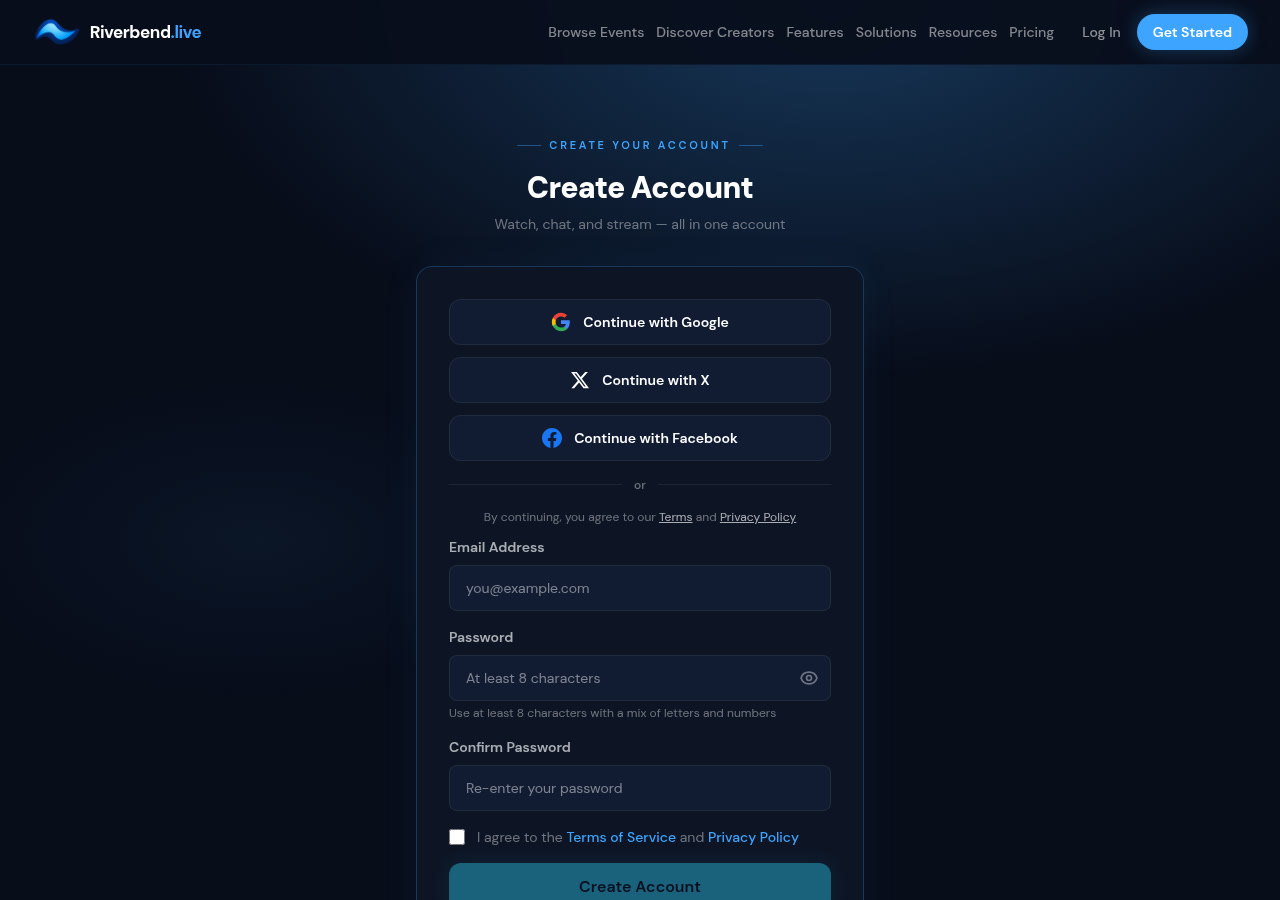
Your organizer dashboard activates automatically — there's no separate “become a creator” step. Then talk to us for a translation quote. Live translation is a custom add-on, quoted per event — tell us your languages, service length and typical congregation size and we'll price your Sundays (from $39/hr per language). Once it's switched on for your account, you pick your destination languages on the event, and translation runs each time you go live.
Step 2: Set up your church
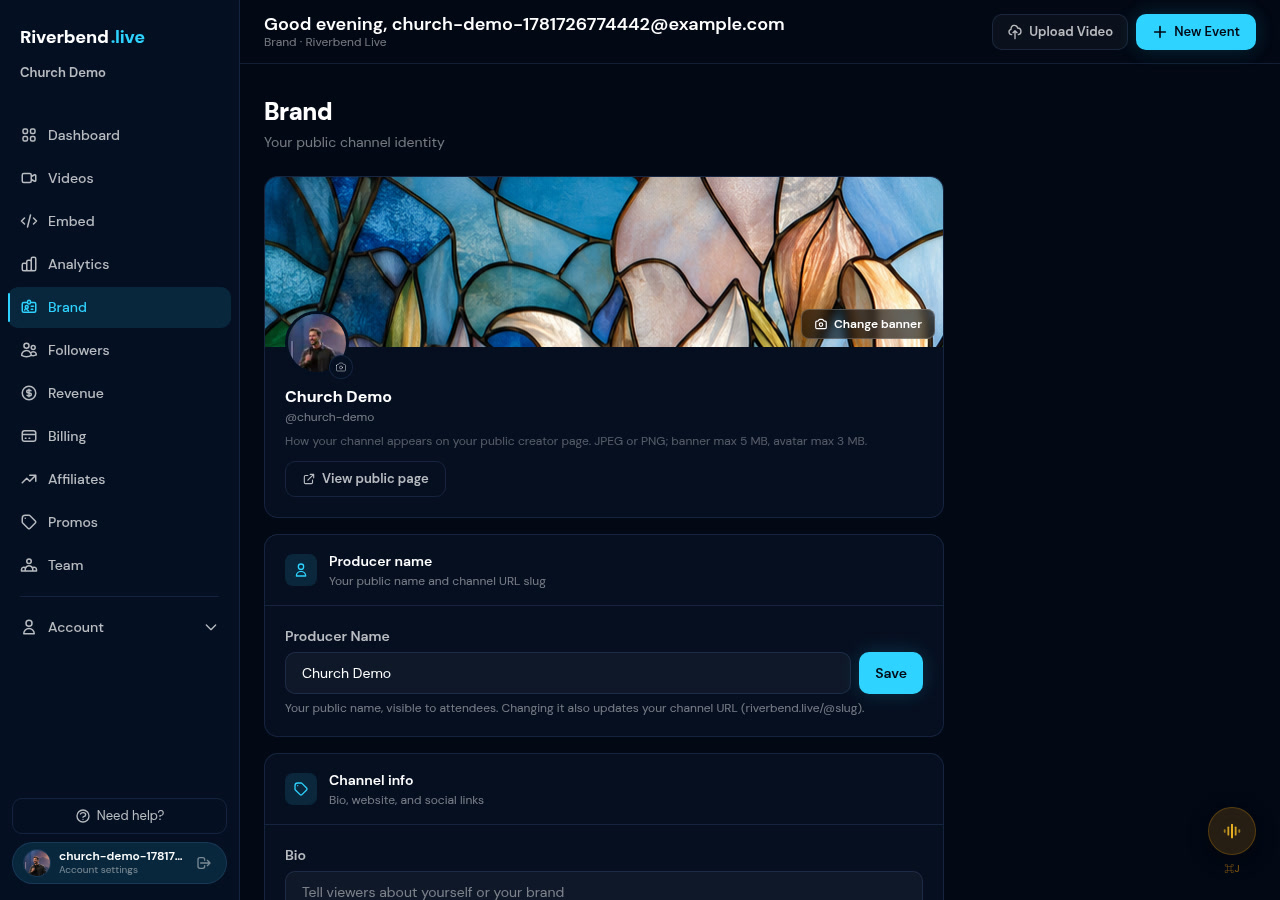
In your dashboard, open the Brand tab and fill in your church name, logo, banner image, short bio, website, and social links. There's also an AI assistant context box — a plain-text description of your church that your event's AI chat assistant uses to answer viewer questions.
Step 3: Set up your weekly service
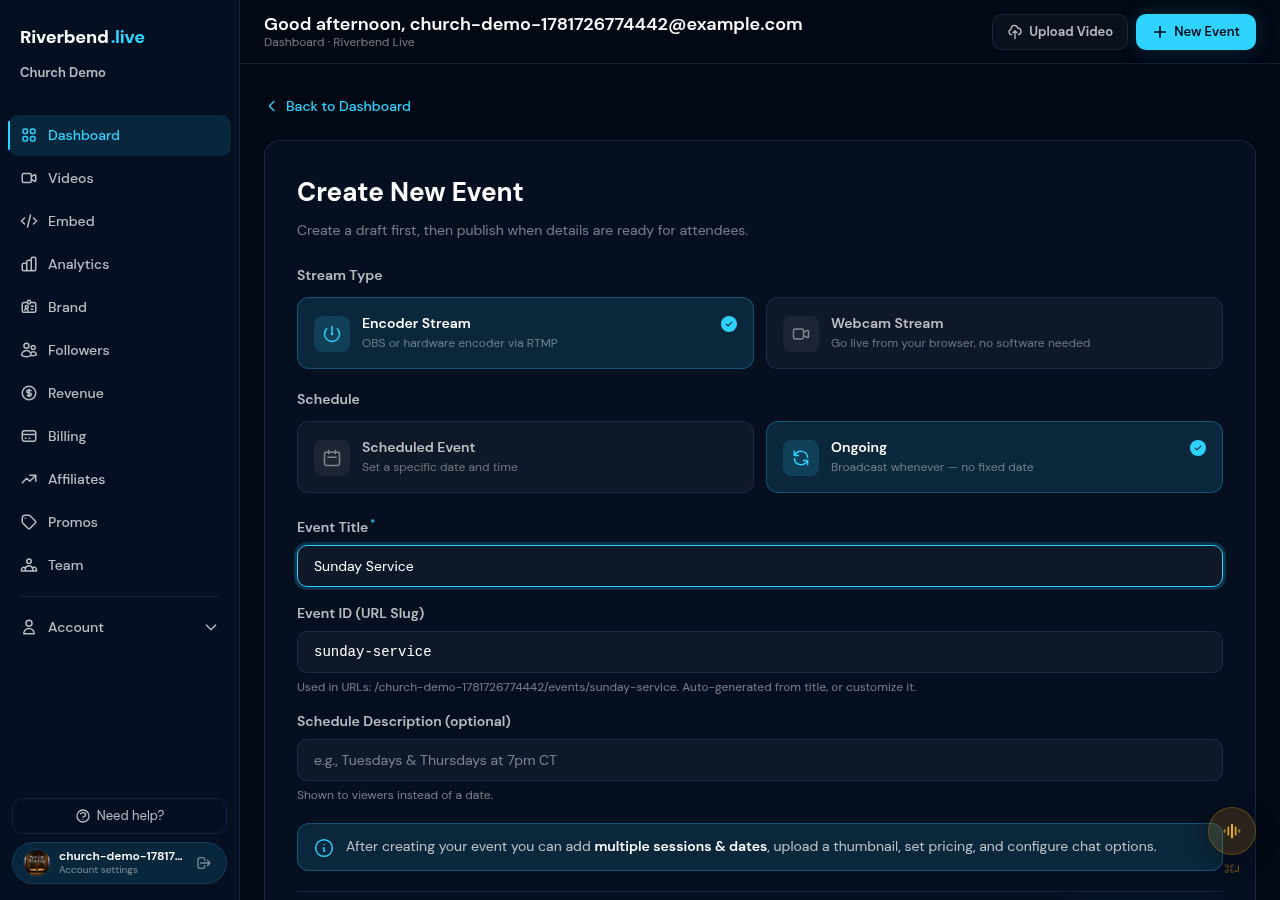
Here's an honest note: the platform doesn't auto-generate a new event every Sunday. Instead, create one event and reuse it every week. For a translated service, choose stream type Webcam Stream — that's the Studio, where live translation runs, and it still accepts OBS (Step 4). Choose schedule type Ongoing, then put your service times in the Schedule Description field (for example, “Sundays at 10:00 AM”) — that text shows to your congregation on the event page.
This gives your church a single stable viewer link, perfect for printing in a bulletin or sharing in a WhatsApp group. Your sermon archive builds in the Videos library (covered in Step 6).
Step 4: Go live with OBS (free encoder) — or just a webcam
In your event settings, under Stream Setup, set Studio Input to OBS / RTMP encoder, then turn on Real-time Translation (it appears once translation is switched on for your account). Set the source language to English and pick your target languages (Spanish, Mandarin, or any others your congregation speaks).
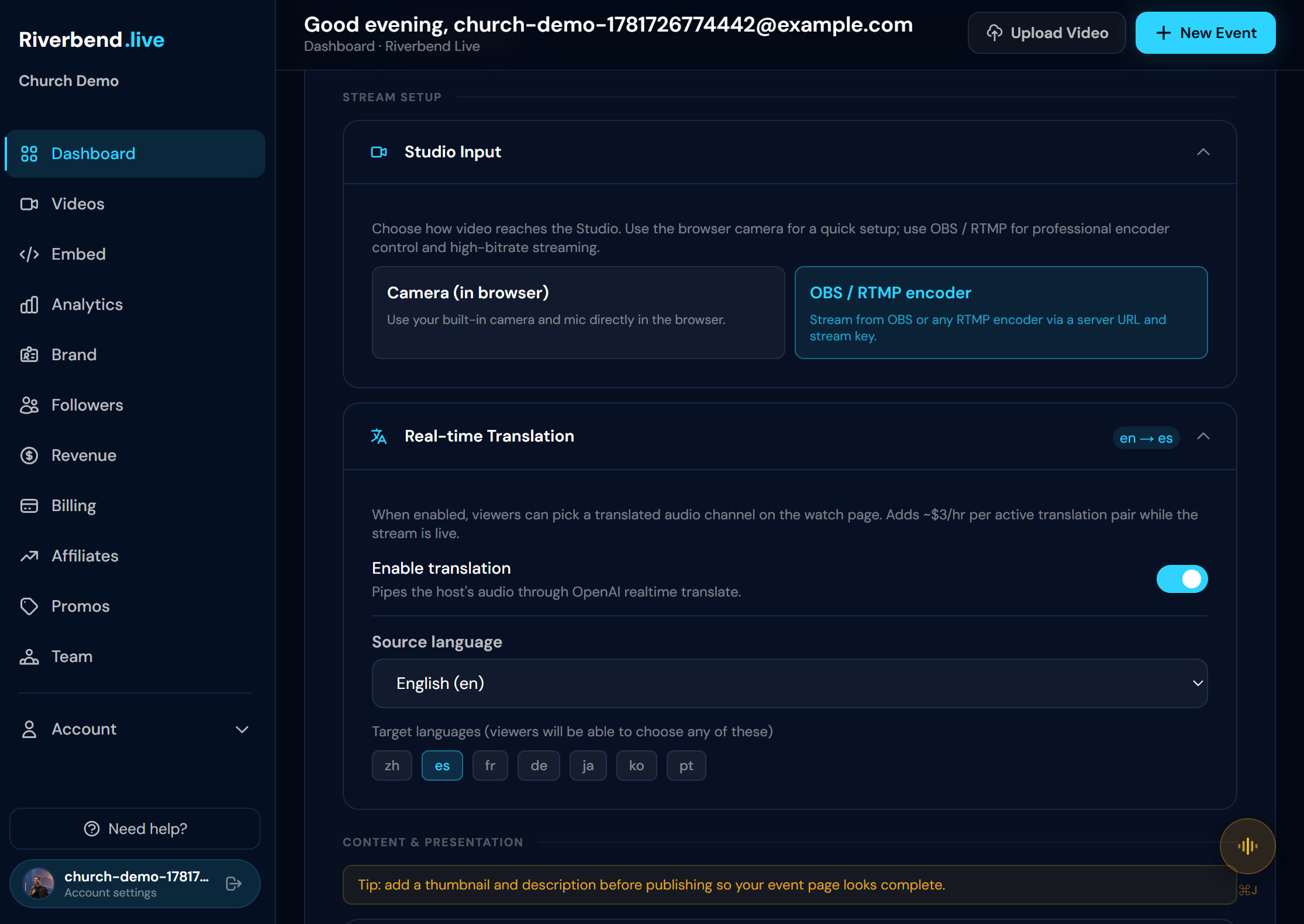
On the publish page you'll see a Server URL and a Stream Key — think of them as the address and key to your church's private broadcast door. Paste them once into OBS and you'll never need to type them again.
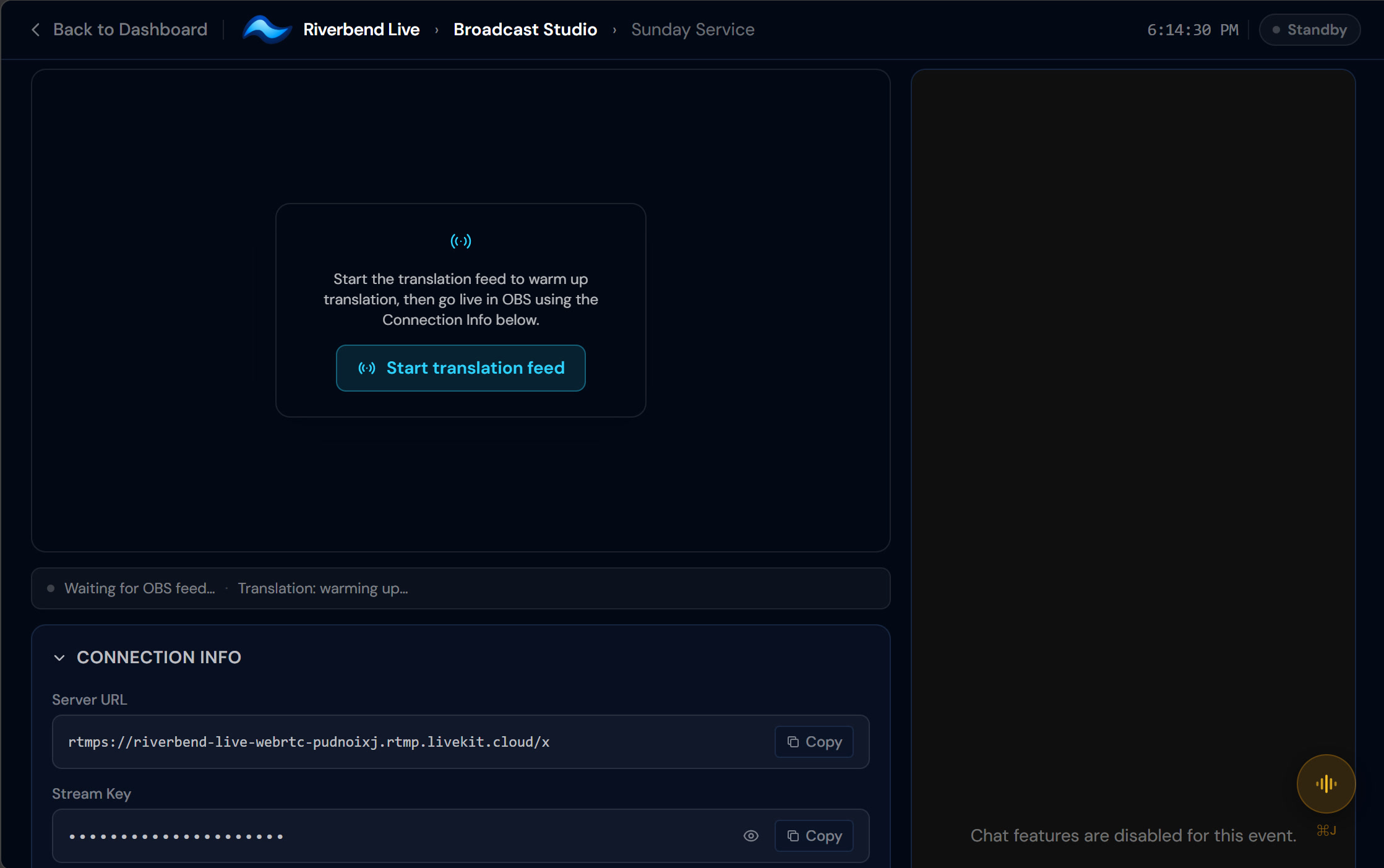
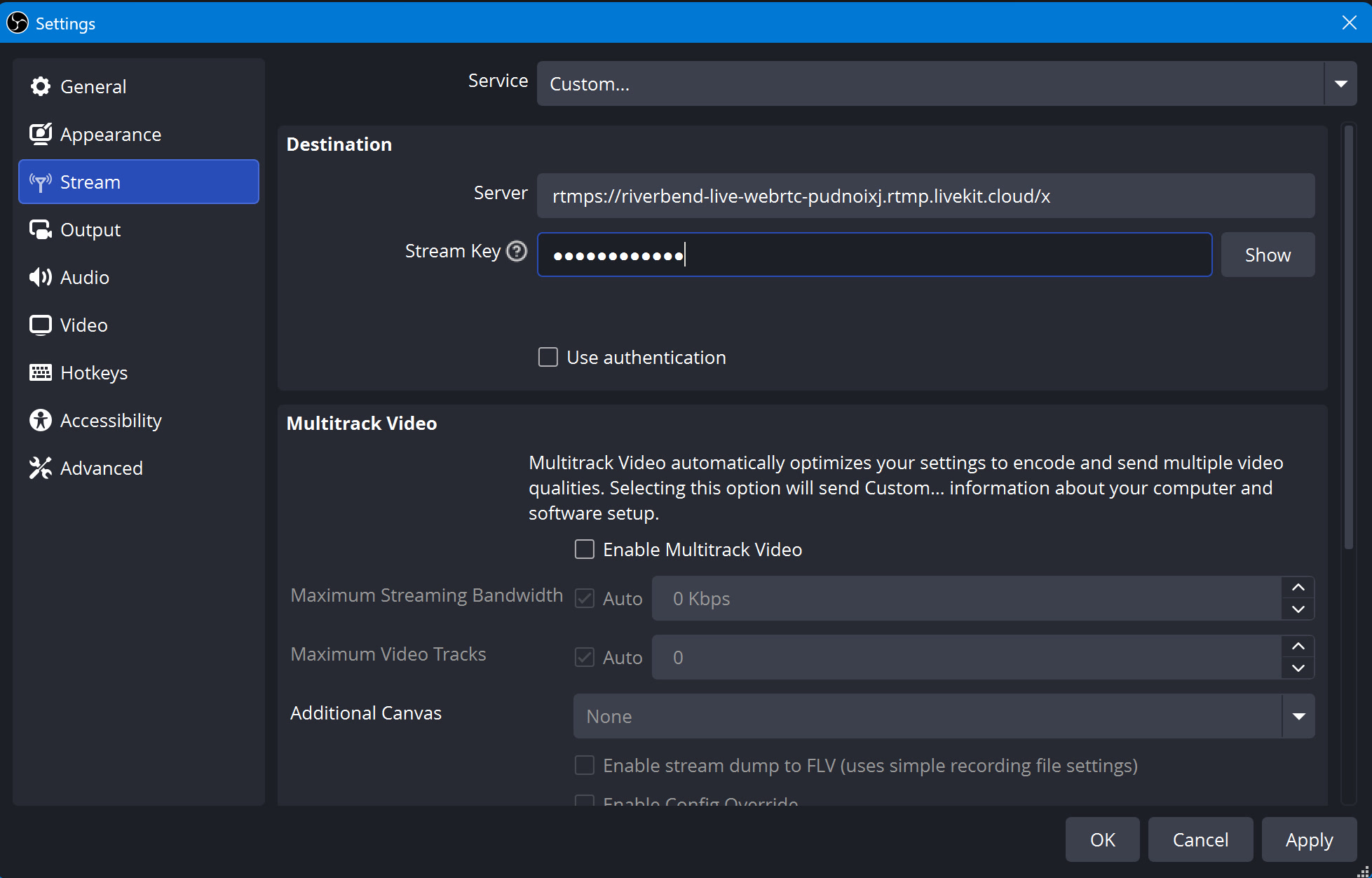
In OBS, first build your Scene with the Sources your service needs — your camera, and optionally slides, lyrics, or a lower-third with the sermon title. Then open Settings → Stream → Service: Custom and paste both values.
Under Settings → Output, a video bitrate of 2–3 Mbps at 720p is the sweet spot, with audio at AAC 128 kbps (clean voice, usually the default — lower audio bitrates hurt translation quality). Viewers of a translated service are delivered at up to 720p, so 2–3 Mbps at 720p looks great without wasting your upload. Pushing 1080p or higher just costs more for no visible gain.
When you click Start translation feed on the publish page, translation takes 20–30 seconds to warm up. That pause is normal — don't click anything. Then hit Start Streaming in OBS. The stream auto-records from the moment you go live.
No OBS? Set Studio Input to Camera (in browser) instead and go live directly from your browser — same translation, no software to install. When you press Go Live, the Studio warms translation up for you; there's no separate feed button on this path.
What your congregation sees
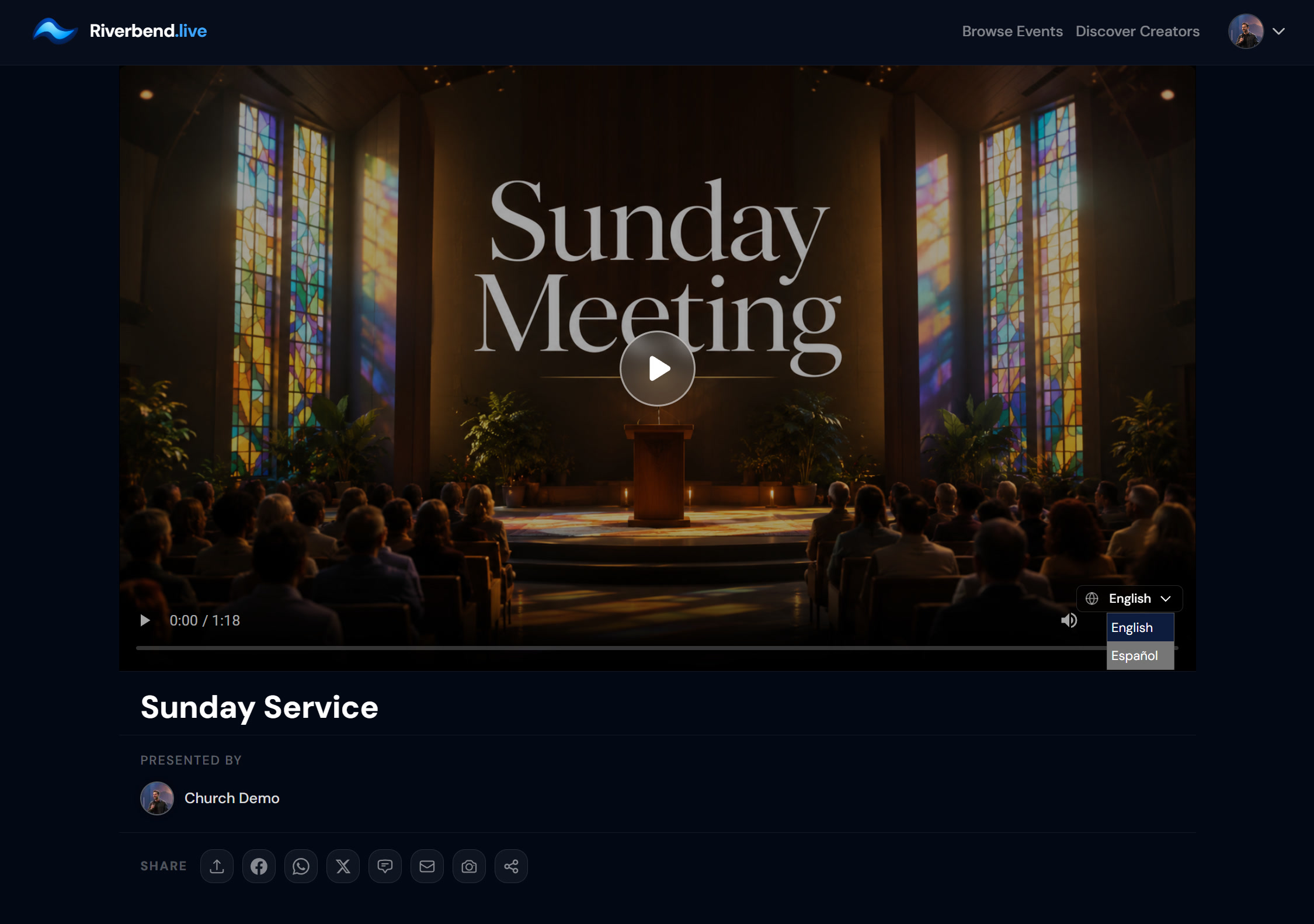
Your members open the viewer link and see a clean player with a language picker. The original audio is always there; each translated language is its own AI-voiced audio track, with live captions in the language they pick (they can turn captions off). The player pre-selects their browser's language when it's one you offer. No app to download, no account required — just open the link and pick a language.
Step 5: Watch on your church page — or embed it on your own website
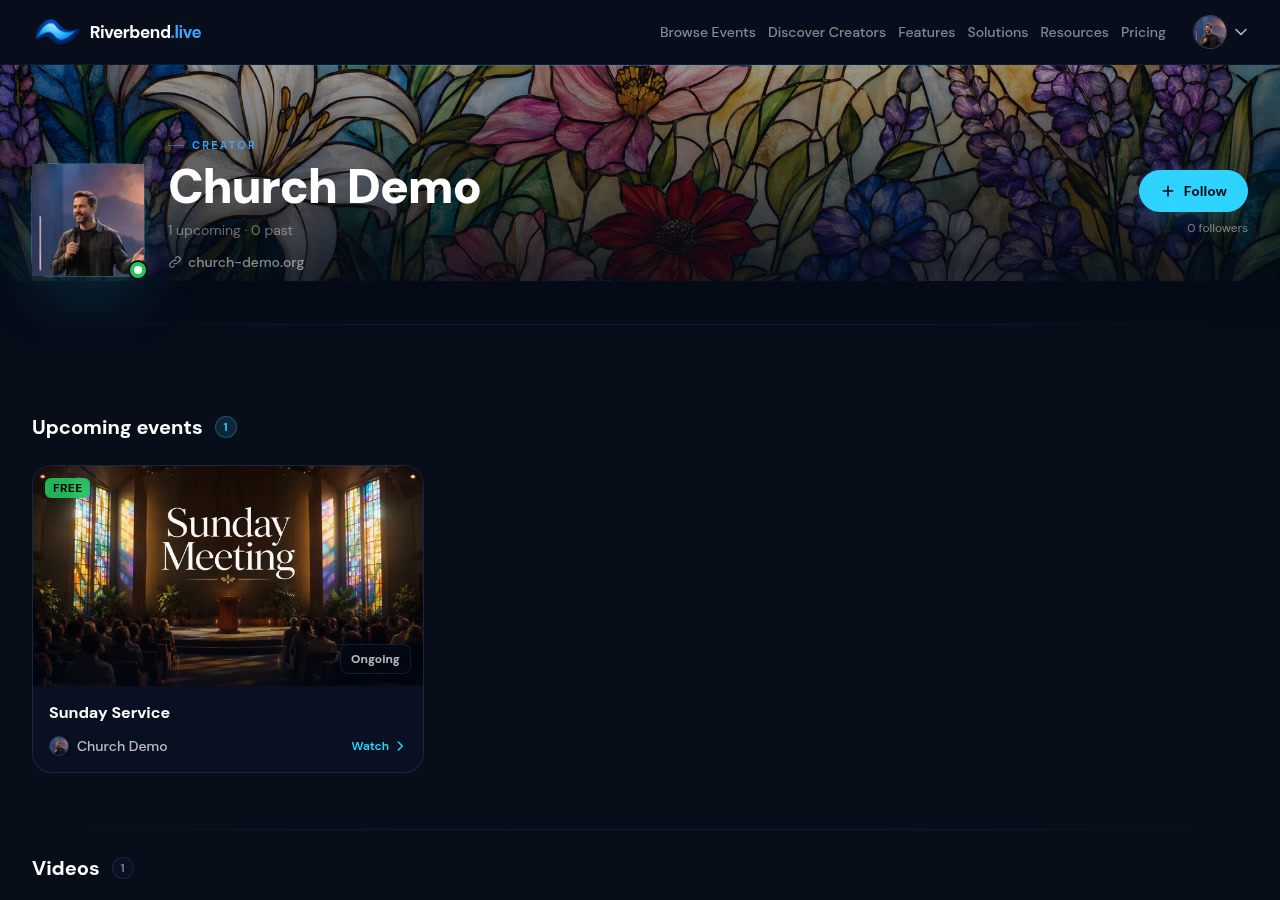
Model 1 — hosted on Riverbend: Your congregation visits riverbend.live/@yourchurch. When you're live, the service appears as a highlighted card with a LIVE badge; they click to watch. Your video library appears below.
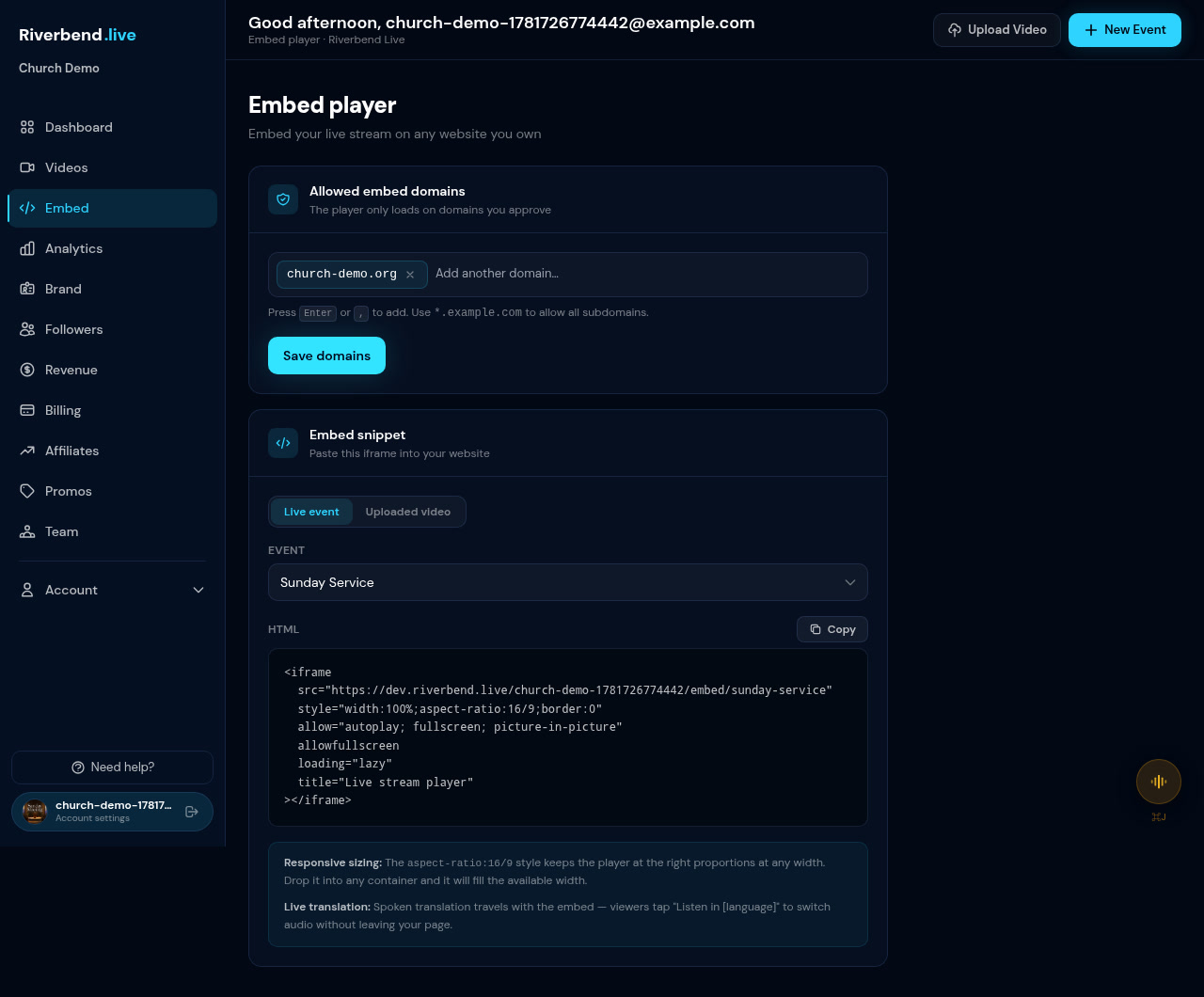
Model 2 — embed on your church website: Open the Embed tab, add your church website domain to the allowlist, and copy the iframe snippet — there's one for your live event and one for each individual video. Paste it into Squarespace, WordPress, or Wix. The translation player works inside the embed exactly as it does on Riverbend.
Step 6: Build a sermon archive (and translate your back catalog)
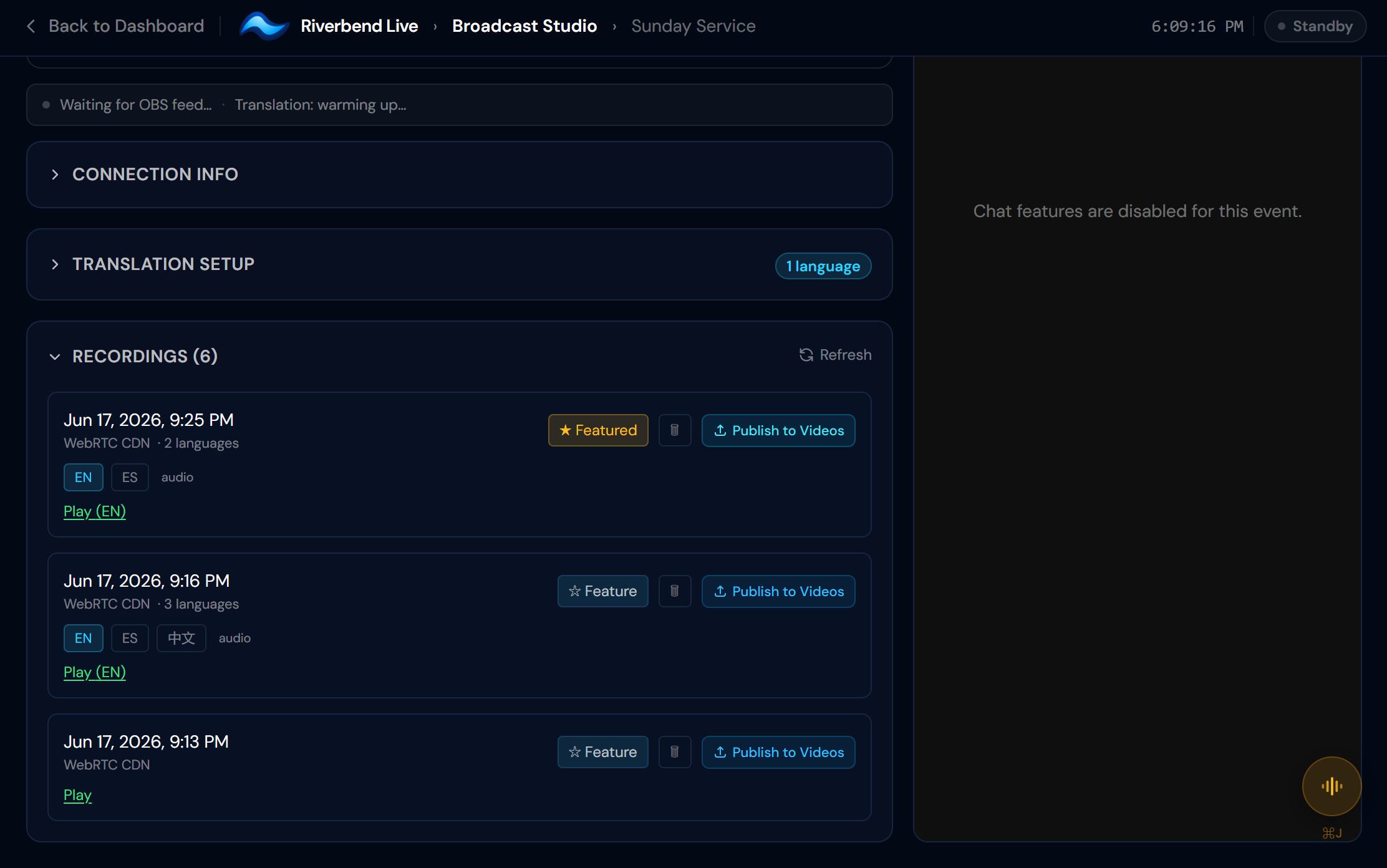
Every service records automatically. To make a recording permanent in your Videos library, publish it — it carries the live-translation tracks automatically, at no extra charge. No re-translation, no manual upload. Sunday's sermon is in the archive by Monday morning.
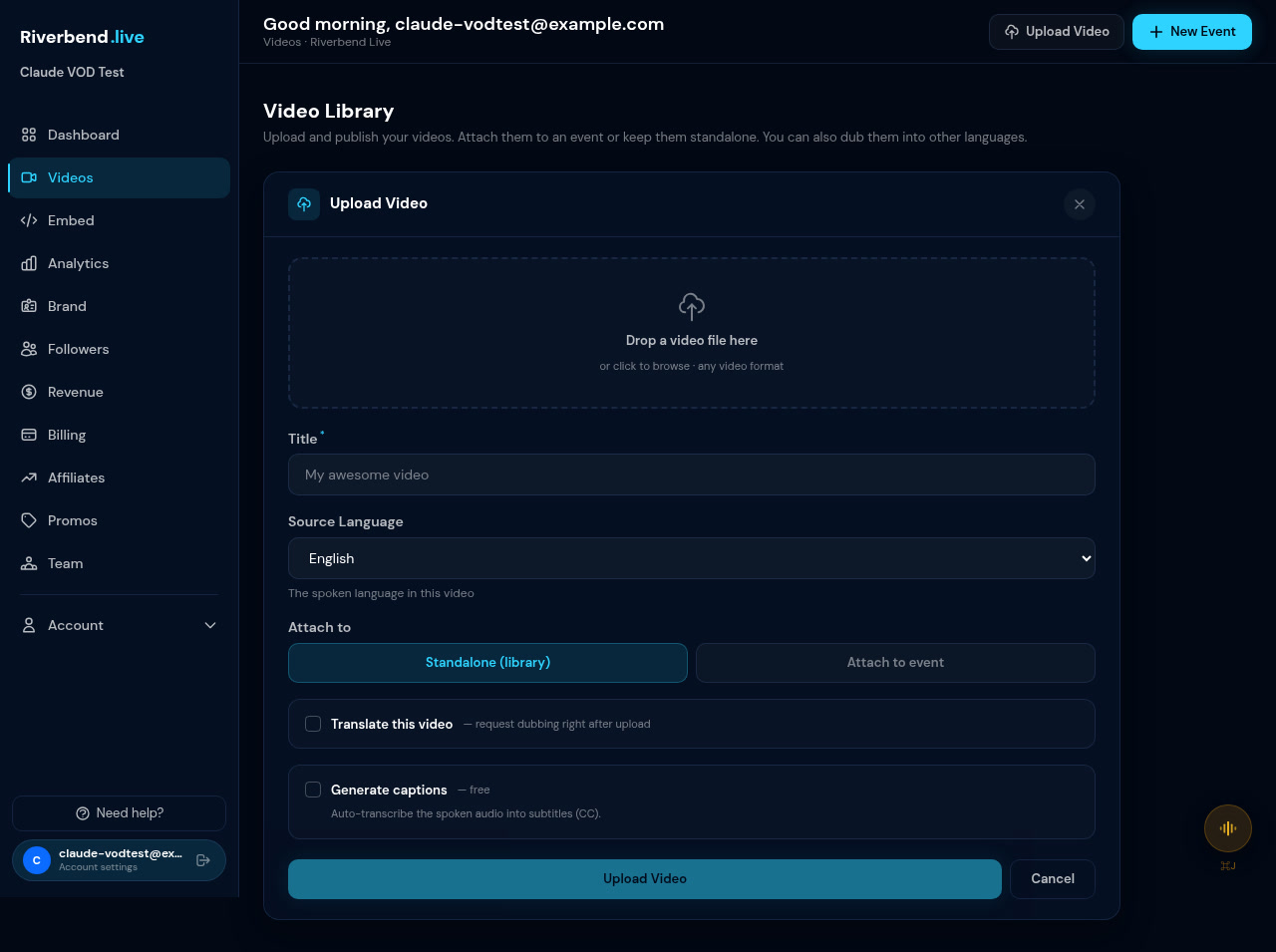
For older sermons: once translation is on for your account, upload the MP4 on the Videos page and translate it at $0.39/min per language. A 40-minute sermon into Spanish costs about $16. You can choose from 40+ languages, including Spanish, Mandarin, French, German, Portuguese, Japanese, Korean, Arabic, Hindi, Vietnamese, and Tagalog.
Each video in your library can also be embedded on your church website with the same iframe snippet from the Embed tab.
Step 7: See who you reached
Your Analytics tab shows approximately how many people watched live (close estimates, not turnstile counts), how many in each language, peak concurrent viewers (exact on your interactive stream), replay views and watch-minutes, and how many came from your church website via embed attribution. A few viewers may show as “Unknown site” when a browser hides the referrer — that's normal behavior, not a gap in coverage.
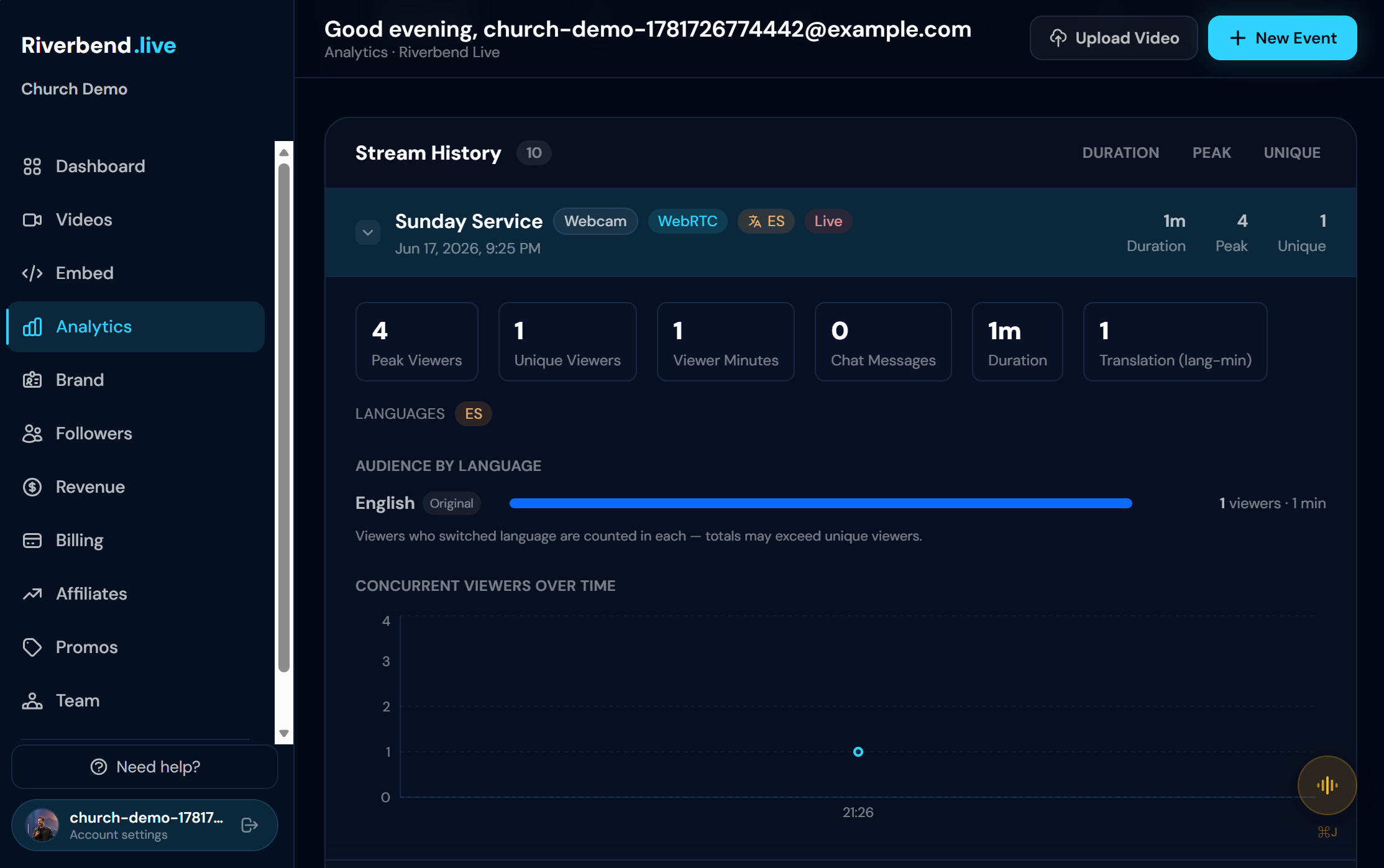
Estimates, not exact science — but enough to know how many people followed along in Spanish last Sunday. Every one of them is a reason to keep going.
Your first translated service is this Sunday
Here's the whole path in one place:
- Pick Broadcast or Studio on the pricing page, then talk to us for a translation quote
- Set up your church on the Brand tab
- Create one ongoing event — reuse the same link every week
- Go live from OBS or your webcam — translation runs on every service
- Translate your back catalog — $0.39/min per language
Don't wait for the perfect setup or a bigger volunteer team. Ask us for a translation quote today, set up one weekly event, and let this Sunday be the first time everyone in your church hears the Word in their own language. The grandmother in the third row is already in her seat.
Frequently asked questions
Do we need special equipment, or can a volunteer run it?
A volunteer can run it. If you already use OBS, it's paste-and-go; if not, use the Webcam source and go live from a browser — no broadcast gear.
Do our members need an account to watch?
No. They open the link and pick their language; no signup, no app.
What internet speed do we need?
A stable upload of about 5–10 Mbps comfortably handles a 720p stream. Wired is better than Wi-Fi if you can.
How accurate is the AI translation?
It's AI-powered and genuinely good — easily good enough to follow a sermon and feel included. Like any translation it's an aid, not a replacement for a human interpreter on the highest-stakes moments; most churches find it exactly right for Sunday. Clean audio (AAC 128 kbps+) helps a lot.
How much does translation cost?
Live translation is a custom add-on, available on either the Broadcast or Studio plan and quoted per event — from $39/hour per language. Tell us your languages, service length and congregation size and we'll price your Sundays. Old-sermon (back-catalog) translation is $0.39/min per language.
Can people watch on our own church website?
Yes — add your website's domain on the Embed tab, then copy the iframe for your live event or any video and paste it into Squarespace, WordPress, or Wix.
Is each week's service saved?
Every stream auto-records, and you can publish any recording as a permanent video in your library (it keeps its translation tracks). You reuse one ongoing event each week; the saved sermons stack up.
Can we charge for special events?
Yes — special events (concerts, conferences) support pay-per-view ticketing; see the churches overview.